AllThatCapture
Loading…
How to Use
Click the 'Download Portable Version (.ZIP)' button above to download the latest archive, then extract it to your desired folder.
Launch AllThatCapture.exe from the extracted folder. (.NET 8 Desktop Runtime required; if FFmpeg is missing, a one-click WinGet automated setup popup will assist you.)
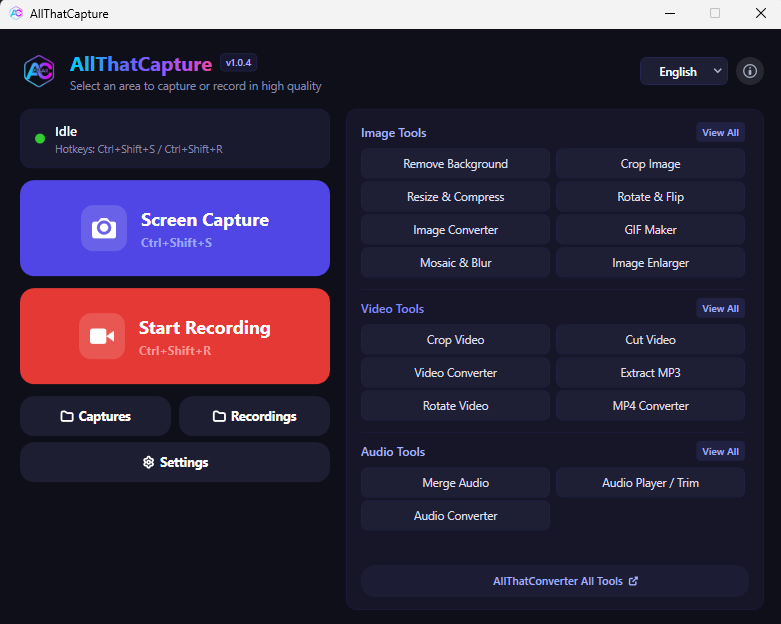
Screen Capture: Press Ctrl+Shift+S or click 'Screen Capture' on the main window. Drag to select the desired region, then press Enter to simultaneously save a 32bpp PNG and copy it to your clipboard.
Screen Recording: Press Ctrl+Shift+R or click 'Screen Recording' to choose a recording area, then press Enter to start zero-lag H.264 video recording. Press Ctrl+Shift+X to finish and save immediately.
GIF Conversion & Settings: In the Settings menu, enable 'Save as GIF upon Recording Completion' to automatically generate a sharp, smooth GIF animation alongside your MP4 video.
Key Scenarios & Use Cases
Instant Messenger & Documentation Pasting
Area capture automatically copies both bitmap image data and file paths to your clipboard, allowing one-second Ctrl+V pasting into Slack, Notion, Discord, Jira, and email clients.
Tutorial, Lecture, and Bug Recording
Record crisp code snippets and small UI text with CRF 18 lossless quality. Outer recording borders are automatically excluded from the recorded output via Windows capture exclusion technology.
High-Quality Animated GIFs for GitHub & Blogs
Generate crystal-clear, smooth animated GIFs powered by 2-pass palette optimization without color banding, blur, or framerate stutter.
Preset Aspect Ratios for Social Media & Video
Easily frame captures and recordings with dedicated aspect ratio presets: 16:9 (YouTube), 9:16 (Shorts/Reels/TikTok), 1:1 (Instagram), 4:3, and 21:9 (Ultrawide).
Frequently Asked Questions (FAQ)
Yes. AllThatCapture is 100% free for both personal and commercial use with zero advertisements or feature restrictions.
No. It is distributed as a lightweight portable application. Simply extract the ZIP file and run AllThatCapture.exe without modifying your Windows registry.
If FFmpeg is not installed on your system, AllThatCapture provides a one-click automated installation assistant using Windows Package Manager (WinGet), or allows you to select an existing ffmpeg.exe manually.
Windows 10 (version 2004 or newer) and Windows 11 (64-bit) are supported, requiring the .NET 8.0 Desktop Runtime.
This is completely normal and 100% safe. Microsoft Defender SmartScreen displays this alert for newly published open-source or independent desktop apps that do not yet have an expensive EV code signing certificate or established download reputation. Click 'More info' and then select 'Run anyway' to start the app safely.